Image to Font: Turn a Photo of Your Handwriting into a Font
 HandFonty
How image to font conversion works, how to photograph or scan your handwriting for the best result, and what is coming to HandFonty.
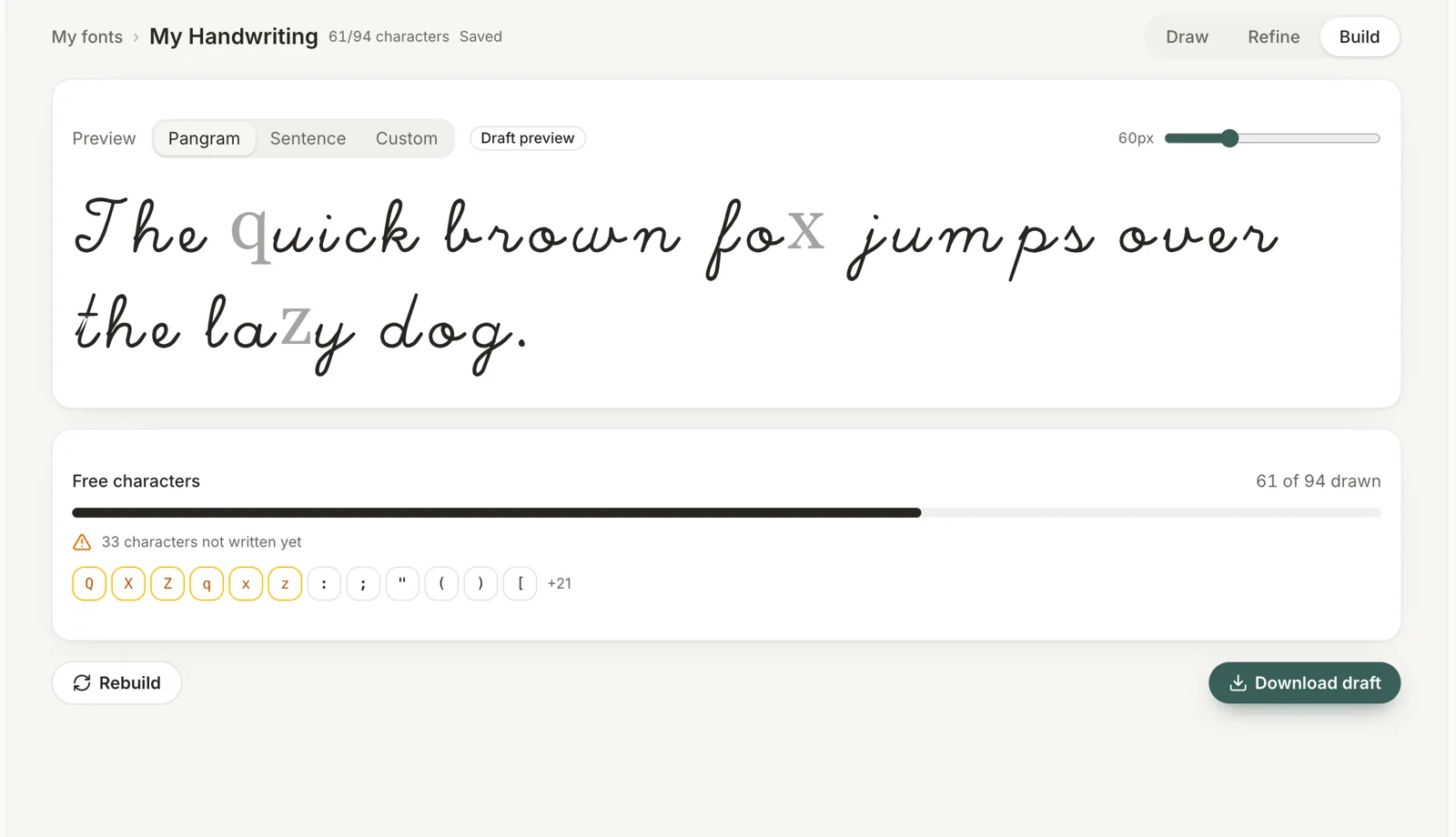
You already have pages of handwriting — notebooks, letters, a calligraphy practice sheet. Image to font conversion lets you reuse them: you upload a photo or scan, the letters are found and traced, and you get an installable font made from writing you've already done.
This guide explains how image to font conversion works, how to prepare your images so the result looks right, and when the feature is coming to HandFonty.
How image to font conversion works
Turning a picture into a font takes four steps:
- Clean-up. The photo is straightened and cropped, and the paper is made white so that lighting, shadows and paper colour don't show up as ink.
- Finding the letters. Each mark of ink is grouped into characters and assigned to a letter, such as
aorA. - Tracing. The edges of every letter are turned into smooth vector outlines. Because they're vectors, the font stays sharp at any size.
- Spacing. Letters are placed on a shared baseline and given widths, so words look natural when you type them.
The tracing step matters most. A rough tracer turns pen texture into jagged edges, while a good one keeps the character of your strokes and leaves out the noise.
How to photograph or scan your handwriting
Most image to font problems come from the source image, so a few habits make a big difference:
- Use plain paper and a dark pen. A black gel pen or felt-tip on white paper gives the cleanest edges. Avoid lined paper if you can.
- Write each letter once, with space around it. Letters that touch are hard to separate cleanly.
- Shoot straight on, in even light. Hold the phone parallel to the page and avoid shadows from your hand or phone. Daylight near a window works well.
- Scan if you have a scanner. A 300 dpi scan beats almost any phone photo.
- Include upper case, lower case, numbers and punctuation. Any character you leave out will be missing from the font.
Image to font vs. drawing your font directly
Both ways produce a real vector font. Which one to use depends on what you already have:
| Image to font | Draw your own font | |
|---|---|---|
| Best for | Existing handwriting, calligraphy sheets, archival writing | Starting fresh, digital lettering |
| What you need | A photo or scan | A mouse, finger or stylus |
| Control over each letter | Fix-ups after tracing | Full control while drawing |
| Available in HandFonty | Coming soon | Available now |
When image to font is coming to HandFonty
We're building image upload now, and it is planned to launch within the next few weeks. You'll be able to upload a photo or scan, check how each letter was detected, and then fine-tune the result with the same Refine and Build tools you use today.
You don't have to wait to start, though. With the free handwriting font generator, you can draw each letter by hand and download an OTF or TTF font in about twenty minutes. Once image upload launches, you can add photographed letters to the same font.